Invite your team and set roles
Invite teammates to your Panelbot account, assign built-in or custom roles, build a role from the permission catalog, and control sensitive access.
You do not run support alone, and your Panelbot account should reflect that. This step brings your colleagues into the account and gives each of them only the access their job needs. Roles decide who can connect billing, manage servers, change the widget, and handle escalations, so setting them thoughtfully keeps your account tidy and secure.
Before you start
Note
- Permission to manage the team. Inviting members and managing roles are controlled abilities, so you need a role that grants them. The account owner always has them.
- The email addresses of the colleagues you want to invite.
Built-in roles versus custom roles
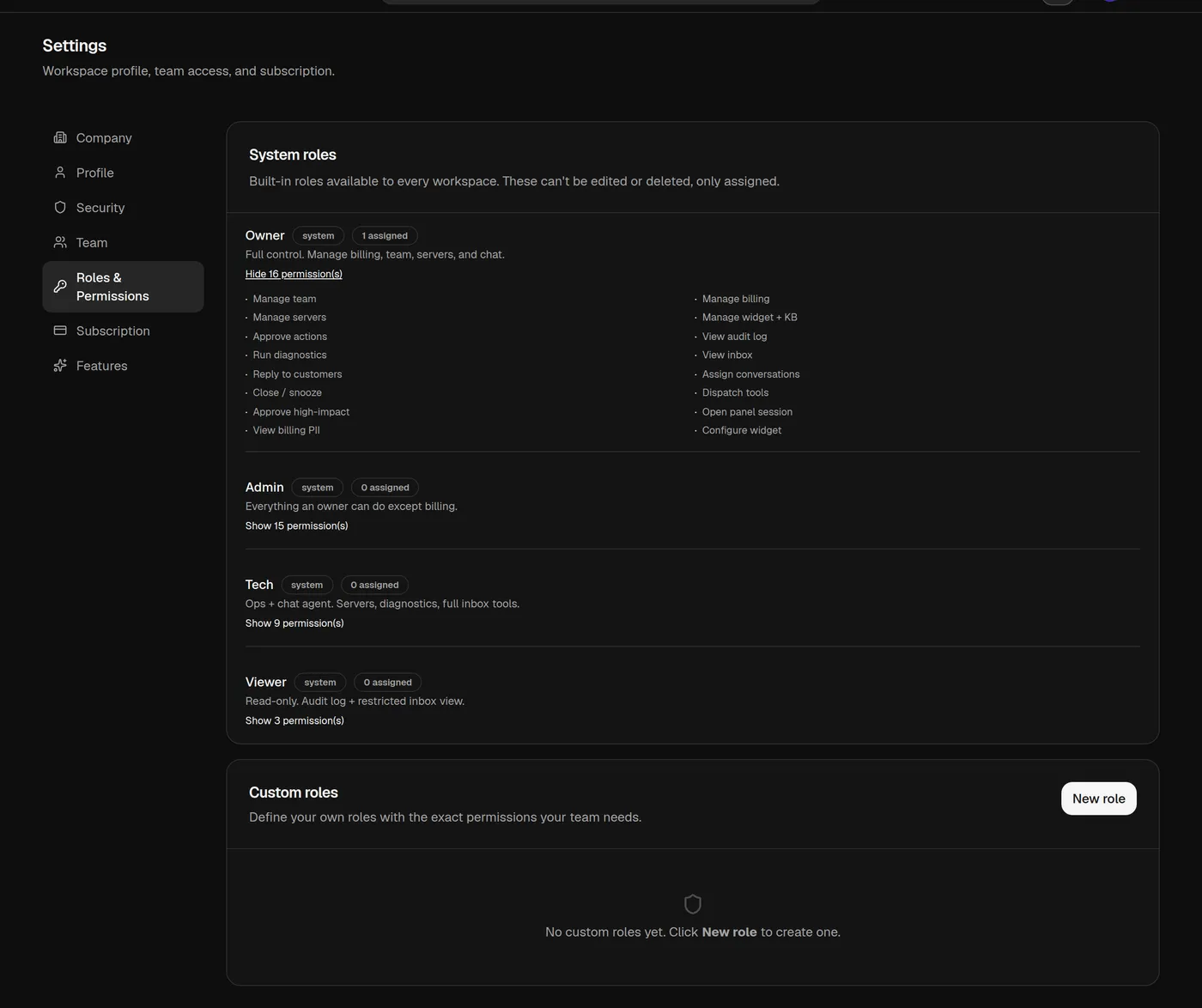
Panelbot gives you two kinds of roles, and they live in the Roles & Permissions section of Settings:
- System roles are built in and available to every workspace. Each bundles a sensible set of permissions, so you can assign a teammate the right level of access in one choice. You cannot edit or delete them, only assign them.
- Custom roles let you compose your own, choosing exactly which abilities a role includes. Use these when the system roles do not match how your team divides work, for example a role that handles chats and escalations but cannot touch billing or servers.
Most teams start with the system roles and add a custom role or two later as their needs sharpen.
Step 1: Invite a teammate
- Open Settings, then the Team section.
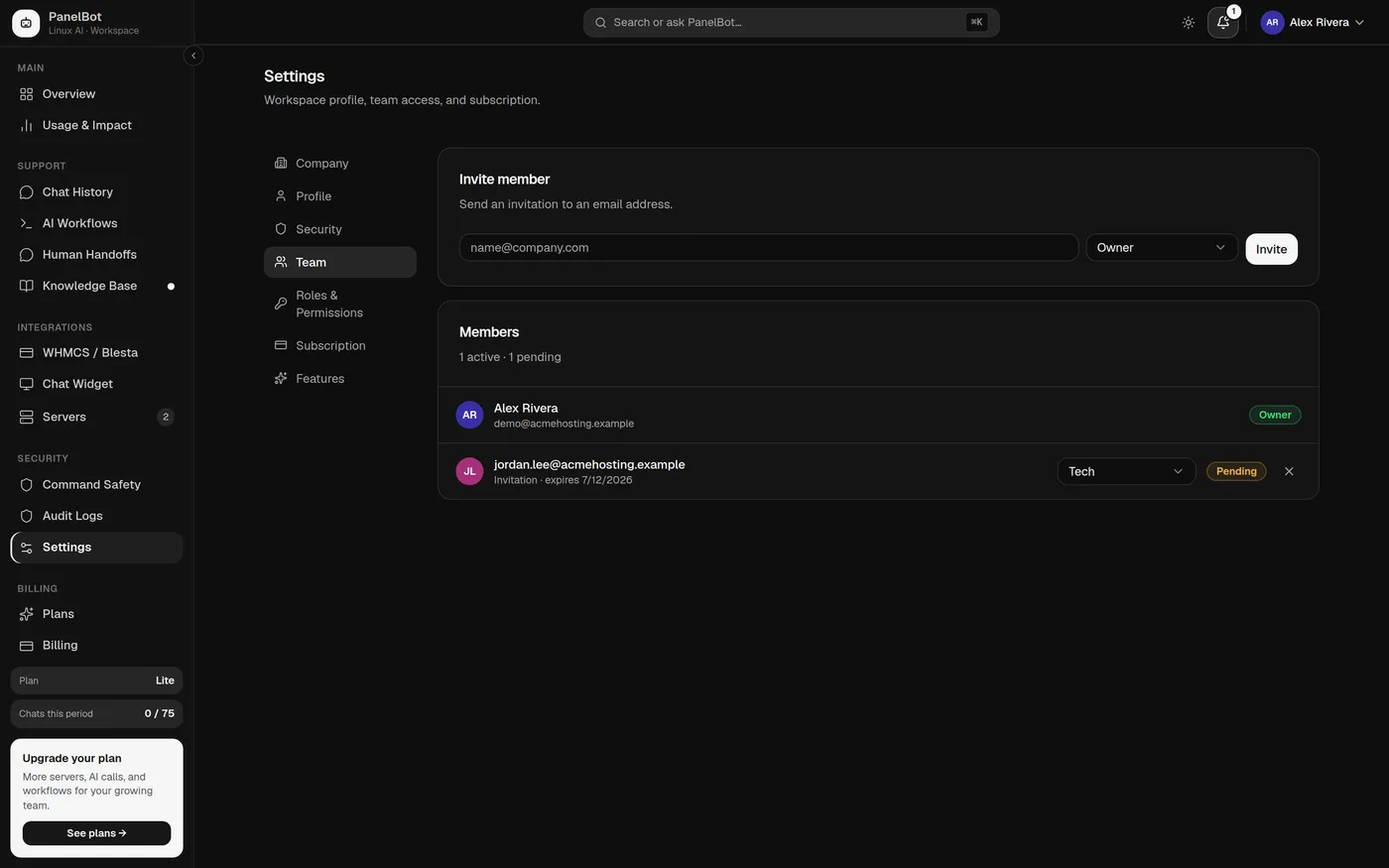
- In the Invite member card, enter the colleague’s email address.
- Open the Select role menu and choose the role they should have. Both system and custom roles appear in the same list.
- Choose Invite.
The person receives an email inviting them to join. Until they accept, they appear under the members list as Pending, and you can change the role you assigned or cancel the invitation.
You know this worked when the new member appears in the Members card, first as pending and then as active once they accept and set their password. The card header counts how many are active and how many are pending.
Step 2: Adjust a member’s role later
People’s responsibilities change. In the Members card you can change the role on any existing member or any pending invitation directly from the role menu next to them. If you try to grant a role that includes access you do not hold yourself, Panelbot stops you with a message like “Could not change the role. You may not be able to grant it,” rather than silently ignoring the change. This keeps anyone from handing out more access than they have.
Step 3: Build a custom role
When the system roles are not a good fit, create your own.
- Go to the Roles & Permissions section of Settings.
- In the Custom roles card, choose New role.
- Give it a Name, for example “Billing Lead,” and an optional Description.
- Under Permissions, work through the catalog and switch on the abilities this role should include. The catalog is grouped by area, so related permissions sit together, and each one shows a short description of what it does.
- Choose Create role.
Your new role now appears everywhere roles are assigned, so you can hand it to new invitations and existing members alike. You can edit a custom role later, and changes apply to everyone who holds it. As a safeguard, you cannot give a role permissions beyond your own, so a role can never be used to grant access above the person who built it. If you try, the editor stays open and Panelbot flags the permission it will not allow.
Who can manage roles
Managing the team and managing roles are themselves permissions. Only members whose role grants them can invite people, change roles, or create and edit custom roles. So you can safely give a teammate day-to-day support access without letting them reshape who can do what across the account. The Invite member card, the New role button, and the edit and delete controls simply do not appear for members who lack the permission.
A good starting setup
- Keep the owner account for yourself or a trusted lead.
- Give front-line staff a role focused on handling chats and escalations.
- Reserve billing and server management for the smaller group who should touch them.
- Add custom roles only when a real gap appears, rather than up front.
A note on the password check
Note
Separately from roles, some account changes ask you to re-enter your password even while you are signed in, in a Confirm your password dialog. This currently guards your two-factor authentication changes, covered in Create your account and sign in. It is a brief extra step that stops anyone acting through a session you left open.
What is next
With your team in place and scoped correctly, you are almost ready to launch. Run the final checks in the Going-live checklist.
Related
- Support inbox and live chat handoff for the work your team picks up.
- Create your account and sign in for two-factor authentication and the password check.
- Audit trail and accountability for the record of who did what.
- What your plan includes for escalations for why team seats are unlimited on every plan.