Install the optional server agent
The Panelbot agent is optional. When a panel credential is enough, when the agent helps, and how to enroll, update, or remove it if you install it.
Updated
Panelbot connects to your cPanel/WHM or DirectAdmin servers over the panel API, and for most hosts that is the whole setup: nothing is installed on the server. See Connect your first server. The agent on this page is the optional extra for the narrow set of jobs a panel credential cannot reach on your setup. If you never install it, nothing else in Panelbot is missing.
When the agent makes sense
Once a server is connected, its capability list shows what the credential you granted can and cannot do. Install the agent only if that list leaves out something you need the assistant to handle, or if you simply prefer a component you run yourself over a credential you hand out. If you connected with a reseller credential and have no root anywhere, the agent is not an option for you, and that is fine: Panelbot works within what the reseller credential allows and hands the rest to your team. A server that Panelbot reaches only through a reseller login shows as Reseller server (limited access), and Panelbot never offers the agent there: there is no Approve agent install button and no install command for it, because the agent needs root on the server. Its details say that only the server’s own host can do root-level work on it. This covers a cPanel reseller login and a DirectAdmin reseller or user login key alike. If your billing system also has the root entry for that machine (the root WHM login, or the DirectAdmin admin login key), the reseller entry becomes a reseller account on that server instead, and the agent is offered on the server itself. See Server types explained.
If you do install it, this page explains exactly what it is, how to install it, and how to remove it, with no surprises.
What the agent is, and what it is not
The agent runs under a dedicated, unprivileged system account. It opens no inbound ports, so nothing on the internet can reach into your server through it. It reaches out to Panelbot rather than the other way around. Anything it runs with elevation comes from a fixed list of exact commands written into a sudoers file on your own machine, never arbitrary commands, so there is no “run any shell command” capability by design. The installer is not obfuscated, so you or your team can read exactly what it does before running it. The complete account, including what the agent still cannot do if Panelbot itself were compromised, is in What the agent can and cannot do.
Approve the install from Panelbot
This is the quickest path on cPanel/WHM servers. On the connect page (Servers, then Connect server), find the server under Your servers and choose Show details. A server connected with a root login that has no agent yet also shows Full access: recommended, which opens the same details. In the Full access block, marked Highly recommended, choose Approve agent install. Your click is the control: because your billing portal already holds an administrative credential for that server, Panelbot asks the connector for it once, marked for this install only, uses it to run the installer, and then discards it. It is never stored and never reused. You do not open an SSH session or paste anything. The connector picks up the approval on its next run, within about 5 minutes; if you would rather not wait, Show the install command gives you the manual command to run now.
Automatic approval is for cPanel only. A DirectAdmin server has no Approve agent install button: it always uses the manual install command below. On a DirectAdmin server connected with an admin login key, Show the install command in its details gives you that command.
You can also decide before any server arrives. On the connect page, under More options, the box Install the PanelBot agent on the servers I connect sets your default. It starts unticked until you answer it. With it ticked, every cPanel/WHM server your connector delivers is approved as it arrives and installed in that same run, except a reseller server, which is never offered the agent. With it unticked, nothing is installed until you approve a server yourself. It has no effect on DirectAdmin servers.
Changed your mind before the install ran? Choose Revoke approval in the server’s details on the connect page and nothing is installed. Revoking does not remove an agent that is already running; uninstall it instead (see below).
If an approved install fails, the server’s details on the connect page show the reason, and Approve agent install or Show the install command tries again. Skip to Step 4: Confirm the agent connected once you have approved, since everything in between is what the approval does for you.
Install it by hand instead
If you would rather run the installer yourself, or the server is not one your billing portal knows about, the four steps below are the manual path. It ends in exactly the same place.
Before you start
Note
- The server connected in Panelbot. Install the agent on a server you have already connected, either a Server (full access) or a VPS or dedicated server. A reseller server (limited access) cannot take the agent.
- Administrative (root) access to that server over SSH, so the installer can set up the service account.
- Outbound HTTPS on port 443, plus outbound access to the message bus port (an encrypted TLS connection; the installer prints the exact host and port if it cannot reach it). The agent connects out to Panelbot; you do not open any inbound ports. On a server running CSF, the installer adds the bus rule to
/etc/csf/csf.allowfor you. - A supported Linux server running cPanel or DirectAdmin.
Step 1: Generate the enrollment token
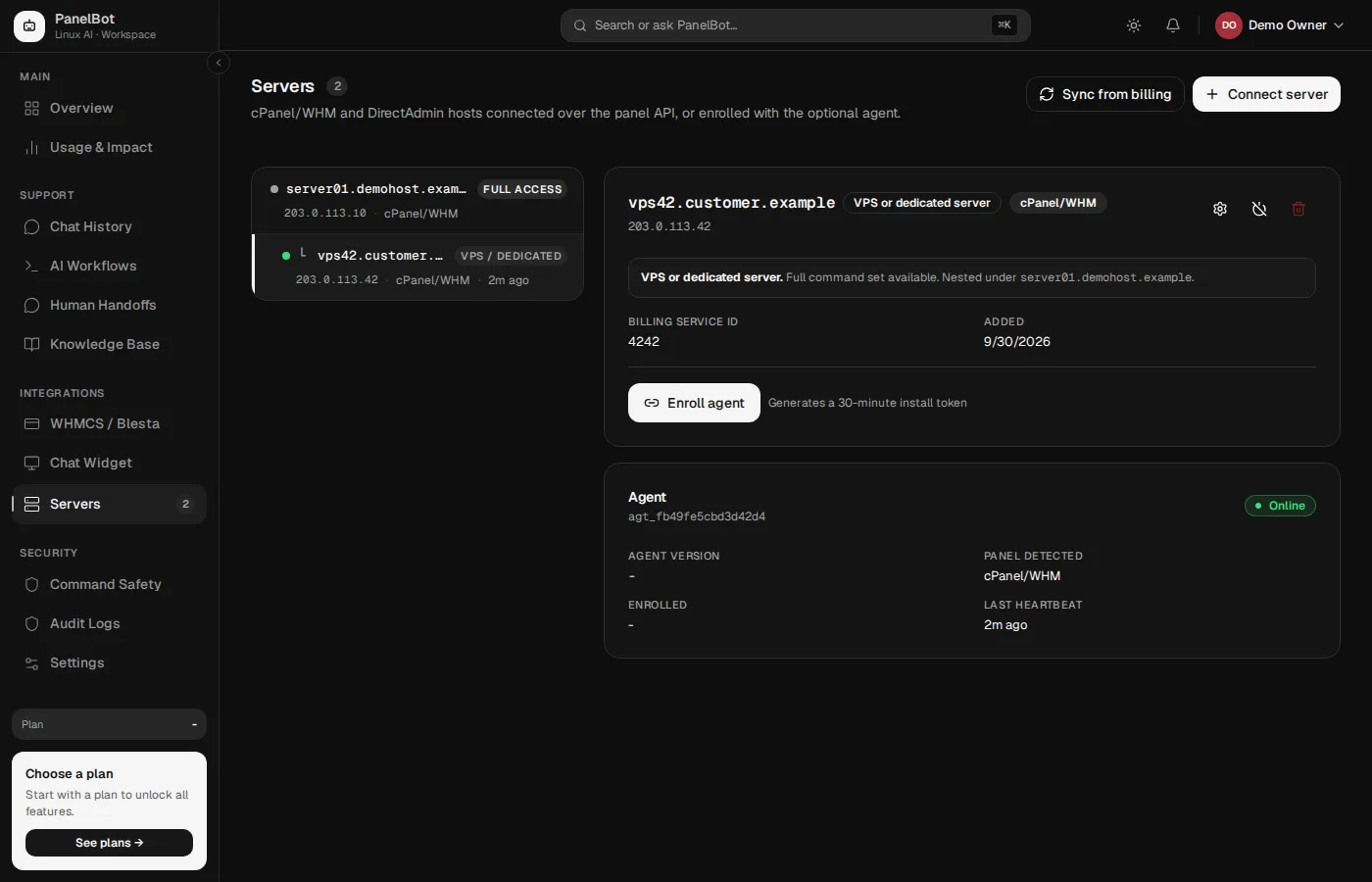
Open the server on your Servers page and choose Enroll agent (it reads Re-enroll agent if one was there before). Panelbot creates a one-time install token tied to that specific server, and the helper text tells you exactly how long it stays valid.
Warning
The token is single-use and time-limited. Once it has enrolled a server it is spent, so it cannot be reused if it leaks, and nobody else can pick it up later. Generate it right before you install rather than hours ahead, and the expiry never becomes something you have to think about.
Panelbot then shows an instruction banner with the exact command to run and the token’s expiry time.

Step 2: Copy the install command
The banner shows a ready-made install command with your one-time token and your dashboard address already embedded. The token is masked by default; use Reveal token if you want to inspect it, and Copy install command to take the exact command rather than typing it out. Copying guarantees the token and address are correct. Run it promptly, since the token is short-lived.
Step 3: Run the installer on your server
Sign in to your server over SSH as an administrator and paste the command. Before anything is installed, your server checks that this is the genuine Panelbot installer and has not been tampered with, and it refuses to continue if that check fails. From there the install is unattended, and it holds to four promises: the agent runs as a dedicated unprivileged account rather than root, it is verified before it is allowed to run, it connects out to Panelbot rather than opening anything inbound, and your one-time token is not left sitting on the server afterwards.
You know the run succeeded when the installer prints a success message and exits without an error. If it fails, it prints a diagnostic explaining what went wrong instead of leaving things half-configured, so a failed install never leaves you with a half-connected server to untangle.
Step 4: Confirm the agent connected
Return to the server on your Servers page. Within a moment the agent card should move to Online, and the detail view fills in Agent version, the confirmed Panel detected, when it Enrolled, and its Last heartbeat. Live health such as memory, disk, and load starts flowing too, and the capability list widens to cover what the agent can now reach.
Updating the agent
The agent keeps itself current, and every update is verified before it is applied. A bad update cannot leave a server broken: if a new version does not come up healthy, the version that was working stays in place and the server keeps running. You can always see the version currently running on the server’s detail view, so you are never guessing which one is live.
Uninstalling the agent
Removing the agent is straightforward. Choose Uninstall agent on your Servers page, and the agent removes itself on its next heartbeat (about a minute), or run the uninstaller on the server yourself. It stops the service, removes the agent’s files, removes the unprivileged account it created, then tells Panelbot the server is no longer enrolled. The server entry stays in your dashboard, and its agent status changes to terminated once the removal is confirmed. (Removing belongs to the separate Remove server action, which also deletes the server entry.) Nothing of ours keeps running on your machine; What the agent can and cannot do spells out what a removal leaves behind. The server stays connected over its panel credential, so the assistant keeps working within what that credential allows.
An uninstall from the Servers page, like a revoked approval, is final for that server: your connect-page default never reinstalls it. If you ever want the agent back, choose Approve agent install again (cPanel), or generate a fresh enrollment token and install by hand.
If enrollment does not complete
- The installer cannot reach Panelbot. Confirm the server allows outbound HTTPS on port 443. The agent needs to reach out, but you do not open any inbound ports.
- The token expired. Tokens are deliberately single-use and time-limited, so an old one will never work twice. Generate a new one and run the command again promptly.
- The agent shows Online but a warning says it cannot fully reach Panelbot. This means the agent started but an outbound firewall is blocking part of its connection. The banner names exactly what to allow. Open that outbound path and the warning clears.
- The server still shows no agent. Re-check the SSH output for the diagnostic message, fix what it names, and re-run. More help is in Troubleshooting your setup.
What is next
With your servers connected, with or without the agent, set up the customer-facing side. Continue with Configure and enable the chat widget.
Related
- Connect a cPanel or DirectAdmin server for the agentless connection most hosts use.
- What the agent can and cannot do for the full disclosure before you approve an install.
- With and without the agent for the capability-by-capability comparison.
- What the installer puts on your server for the exact footprint before you run it.
- Safety and permissions for what the agent is and is not allowed to run.
- Troubleshooting your setup if enrollment does not complete.