Add the chat widget to WHMCS or Blesta
Install the ready-made WHMCS hook or Blesta plugin from your dashboard, put the chat widget in your client area, and verify signed-in customers.
This is the step that puts Panelbot in front of your customers. You add the widget to your billing portal’s client area, where your customers are already signed in. Because they are signed in, each chat carries their real account context: the services they own, their invoices, and the ability for the assistant to open a ticket on their behalf. Panelbot ships ready-made integrations for WHMCS and Blesta, so you do not write any code.
Before you start
Note
- The widget enabled. Turn it on before you embed it.
- Admin access to your billing portal, so you can add the hook or install the plugin.
- File access to your portal (SFTP, the file manager, or similar) to upload one file or folder.
- A couple of minutes and a way to sign in to your portal as a customer to test.
How signed-in chat works, briefly
When a signed-in customer opens the widget, your portal issues a secure, short-lived token that proves who they are. Panelbot verifies that token, then confirms in code which services the customer owns before acting on anything. The integrations below issue that token for you, which is why installing them is all you need to do. Your credentials and signing secrets never leave your portal.
The same integration also connects your servers. There is one file for WHMCS and one plugin for Blesta, and each does both jobs: it puts the chat widget in your client area, and its server connector registers each cPanel/WHM or DirectAdmin server in your portal with Panelbot and mints a scoped panel credential for it, so the server appears already connected. You get the same file from Widget > Install or from the connect page (Servers, then Connect server), where you can read exactly what the connector does before you download. It is plain code in your own portal that you can read. See Connect your first server.
Get the integration from your dashboard
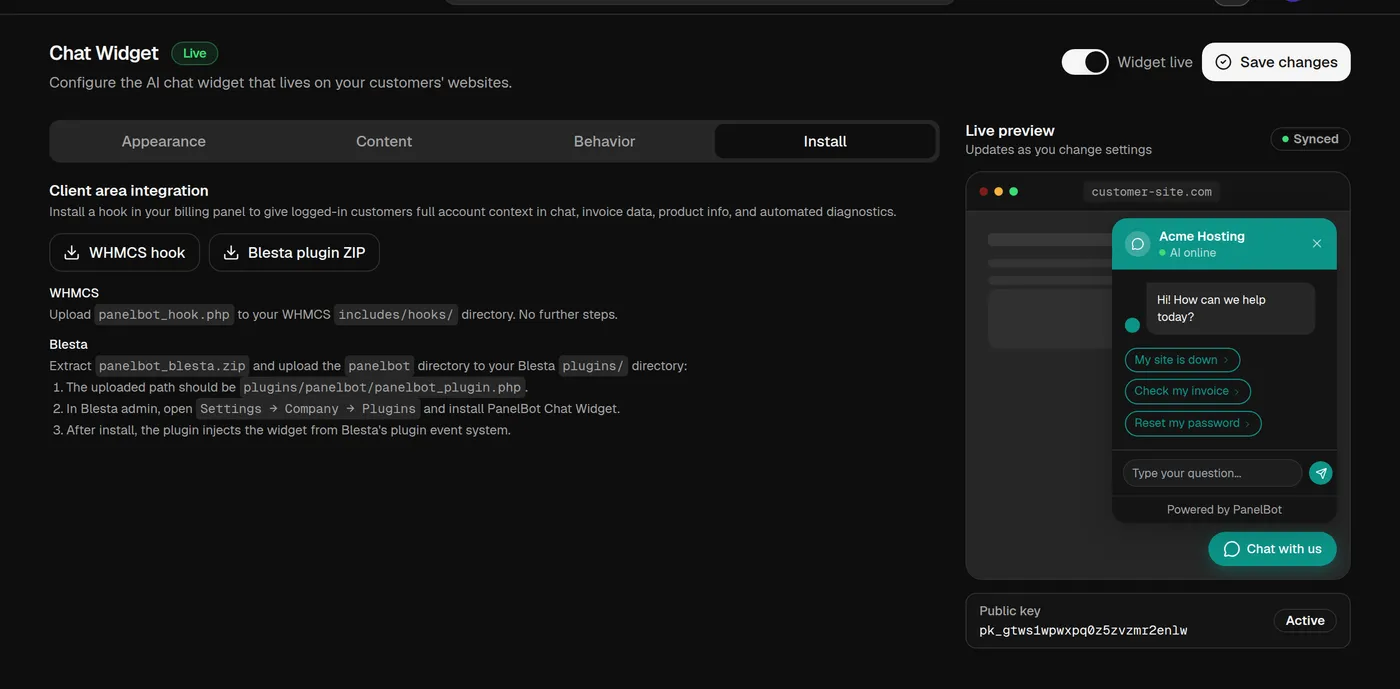
On the Widget page, open the Install tab. Under Client area integration you will find a download for the WHMCS hook and a download for the Blesta plugin. Use whichever matches your portal.
WHMCS
WHMCS loads hook files automatically from one directory, so installing is a single upload.
- On the Install tab, choose WHMCS hook to download the file
panelbot_hook.php. - Upload that file into your WHMCS installation’s
includes/hooks/directory. - That is all. WHMCS picks up hooks in that directory automatically, so there is nothing else to configure.
- If you installed the older separate server connector, delete
includes/hooks/panelbot_connect_hook.phpand theincludes/hooks/panelbot_connect/folder. The new file replaces both. Delete them before you save or add servers. If a server saved while both were installed shows as disconnected in Panelbot, open it in WHMCS and save it once more.
What success looks like. Once the file is in place, sign in to your client area as a customer and the widget appears in the corner you chose, already authenticating that customer. There is no enable step inside WHMCS.
Blesta
Blesta installs the widget as a plugin from its plugin manager.
- On the Install tab, choose Blesta plugin ZIP to download
panelbot_blesta.zip. - Extract it and upload the
panelbotdirectory into your Blesta installation’splugins/directory, so the plugin file ends up atplugins/panelbot/panelbot_plugin.php. - In Blesta admin, open Settings, then Company, then Plugins, and install PanelBot Chat Widget. If it is already installed, choose Upgrade instead.
- If you installed the older separate PanelBot Connect plugin, uninstall it and delete
plugins/panelbot_connect/. Installing or upgrading the new plugin already stops its cron task.
What success looks like. After you install it, the plugin injects the widget into your client area through Blesta’s own plugin event system. Sign in as a customer and the launcher appears, authenticating that customer automatically.
Test that it appears and authenticates
Do not take it on faith. Check it end to end:
- Sign in to your portal the way a customer would. Use a real or test customer account rather than an admin view if you can.
- Look for the chat launcher in the corner you chose when you configured the widget.
- Open it. You should see your greeting and the widget name you set.
- Send a short message and confirm the assistant responds and recognizes the account, for example by referring to a service that customer owns.
If the assistant greets you with account context and responds, the integration is working. This is also the action that completes the final onboarding step, since your first handled chat ticks it off automatically.
Common failure modes
- No launcher shows up. Confirm the widget is enabled on the Widget page (the header should read Widget live), and that the file or plugin is in the right place. For WHMCS,
panelbot_hook.phpmust be inincludes/hooks/. For Blesta, the plugin must be installed and active under Settings, Company, Plugins. - The plugin will not install in Blesta. Check the uploaded path is exactly
plugins/panelbot/panelbot_plugin.php. A wrong folder name or an extra nested directory stops Blesta from seeing it. - The widget appears but the customer is not recognized. This usually means the secure token is not reaching Panelbot. Re-check the integration is installed correctly and that you are signed in as a customer, not an admin.
- It works for admins but not customers. Make sure you tested while signed in to the client area as a customer, not from the admin side, since the token is issued to signed-in customers.
More setup fixes are in Troubleshooting your setup.
A note on where to place it
Tip
The best home for the widget is your billing portal’s client area, because that is where customers are authenticated and where their account context lives. That context is what lets Panelbot move past generic answers and actually resolve account-specific issues.
What is next
With the widget live on your portal, bring in the people who will handle escalations. Continue with Invite your team and set roles, then run the Going-live checklist before you announce it.
Related
- Configure and enable the chat widget for the settings behind the widget you just installed.
- Connect your billing portal for the API credential the same portal needs.
- Support inbox and live chat handoff for what your team sees when a chat escalates.
- Troubleshooting your setup if the launcher does not appear or the customer is not recognized.