Create your account and sign in
Set up your Panelbot account, sign in for the first time, pick a strong password, and switch on two-factor authentication to keep your team protected.
This is the first thing you do to get Panelbot running for your hosting company. You create an account, choose a password, verify your email, and lock the account down with two-factor authentication. Give it about five minutes. Sign-up on the Free plan needs no payment card; only paid plans take you to checkout.
Before you start
Note
- An email address you check often. This becomes the owner login and the address that receives setup and escalation notices.
- A payment card, but only if you are starting on a paid plan. The Free plan needs no card at all.
- An authenticator app on your phone, if you want two-factor ready during setup. Any standard time-based one-time-password app works, and we recommend turning it on.
Step 1: Create your account
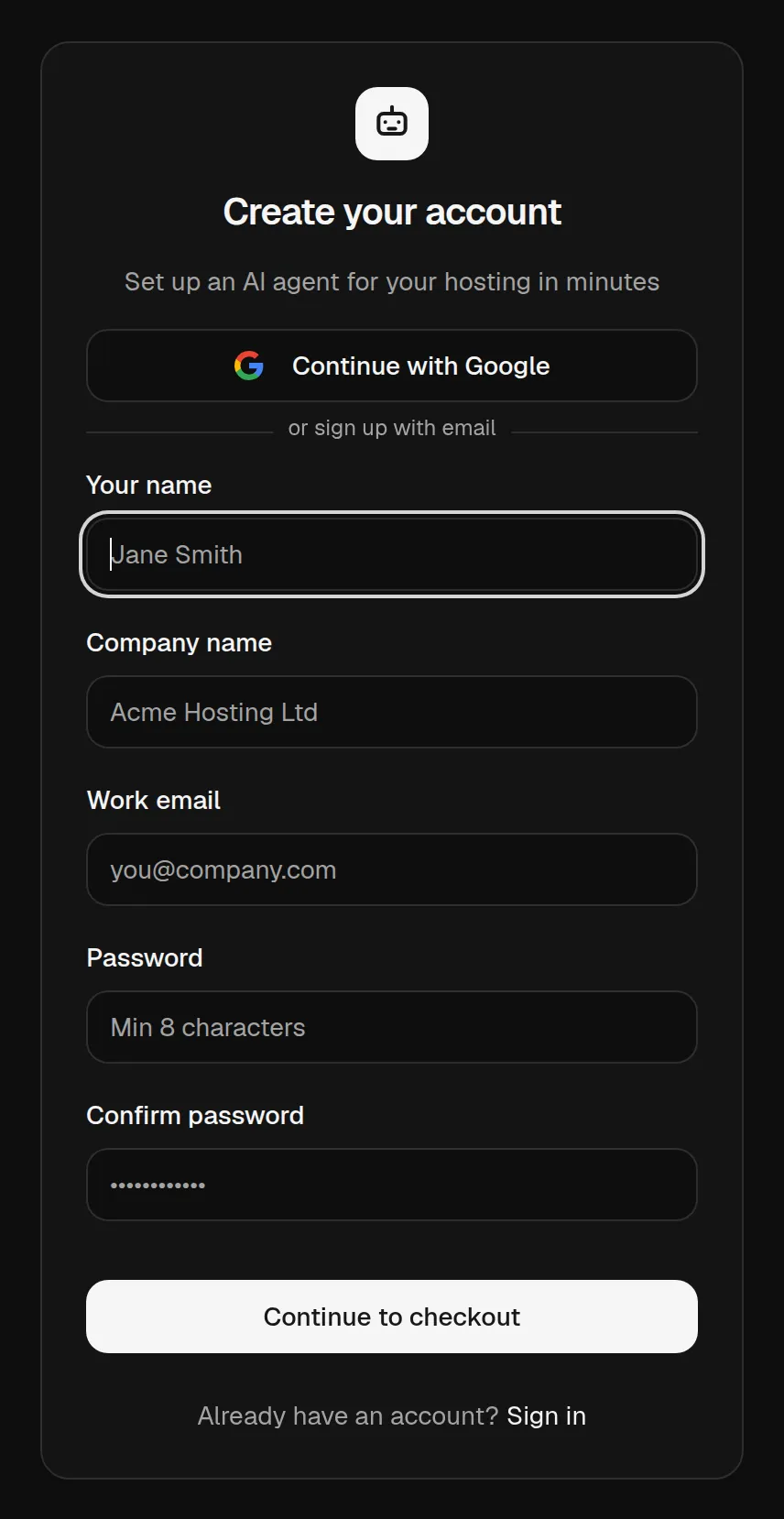
Pick a plan on the Panelbot site. Sign-up is self-serve: the plan you choose opens a short form where you enter your name, your company name, a work email, and a password. Confirm the password and submit.
You can also choose Continue with Google at the top of the sign-up form instead of filling it in. Panelbot then uses the email address Google has already verified, so there is no separate email verification step, and the plan you picked carries through.
Tip
Choose a long password you do not reuse anywhere else, and let a password manager hold it. This account can reach your billing portal and your servers, so treat it with the same care as your most sensitive admin login.
You know this worked when your account is created, you are signed in, and Panelbot asks you to verify your email before continuing.
Step 2: Verify your email
Panelbot sends a verification link to the address you entered. Open it and click to confirm the address is yours. This has to happen before you reach billing, so do it now.
You know this worked when the verify screen moves to the next step. If the email has not arrived after a few minutes, check spam, confirm you typed the address correctly, and use the resend option on the verify screen.
Step 3: Pick your plan
If you signed up on the Free plan, there is nothing to do here: your email is verified and you go straight to the dashboard, with no card and 30 conversations a month waiting for you.
If you chose a paid plan, Panelbot takes you to secure checkout to enter your card once your email is verified. Billing starts that day at the price shown at checkout. There is no trial period to wait through.
You know this worked when checkout finishes and you land in your dashboard, where Panelbot opens a guided setup checklist. Start it now or come back later. The Onboarding checklist overview explains what each step covers. On future visits you sign in from the sign-in page with the email and password you chose in Step 1.
Step 4: Turn on two-factor authentication
Two-factor authentication adds a second check at sign-in, so a stolen password on its own cannot get anyone in. Because Panelbot can act on your servers through approved operations, turn this on before you go further.
- Open Settings, then the Security section. You will see a card titled Two-factor authentication.
- Choose a method. Authenticator app pairs with an app like a standard authenticator and is the stronger choice. Email code sends a six-digit code to your email at each sign-in instead. Click Enable on the one you want.
- If you chose the authenticator app, scan the on-screen QR code with your app. If the code will not scan, use the Manual entry key shown below it.
- Type the six-digit code into the Authentication code field and choose Verify and finish.
- Panelbot shows your recovery codes once. Choose Download .txt or copy them somewhere safe and offline, then choose I’ve saved them. These let you back in if you lose your phone, so treat them like passwords.
You know this worked when the Security card shows two-factor as active. From now on, each sign-in asks for a code in addition to your password. Some sensitive changes also ask you to re-enter your password in a Confirm your password dialog, even while you are signed in. That is deliberate, and it guards against anyone acting through a session you left open.
Adding the rest of your team
You do not need separate accounts for every colleague yet. Once you are in, you invite teammates by email and give each one a role that matches what they do. Roles decide who can connect billing, manage servers, change the widget, or handle escalations. Set this up when you are ready in Invite your team and set roles.
If you get stuck
- The verification email never arrived. Check spam and confirm the address you signed up with. Wait a few minutes, since email can lag, then use the resend option on the verify screen.
- You forgot your password. Request a reset link from the sign-in page. Reset links are deliberately short-lived.
- You lost access to your authenticator app. Use one of the recovery codes you saved during setup. If those are gone too, contact support to verify your identity and recover the account.
What is next
With your account secured, connect the pieces Panelbot needs to help your customers. The guided checklist walks you through it, and the Onboarding checklist overview lays out the whole path before you begin.
Related
- Start free on WHMCS or Blesta for the whole card-less path in one page.
- Connect your billing portal for the next setup step.
- Invite your team and set roles for bringing colleagues in.
- Free plan terms and the 30-chat limit for what you get without a card.