Server types explained
The server types in Panelbot: full access servers, reseller accounts on a server, reseller servers with limited access, and VPS or dedicated servers.
Updated
Every server in Panelbot has a type. The type decides which commands Panelbot will run on that machine. Getting it right keeps your shared customers safe and gives your VPS and dedicated customers full support. This page explains each type, how it shows in your list, and how reseller accounts on a server fit in.
Before you start
Note
- Billing connected and at least one server connected or scanned. See Connect your first server.
- A rough idea of your fleet: which machines are shared or reseller hosting, and which are single-customer VPS or dedicated servers.
The types at a glance
| What you see in Panelbot | What it is |
|---|---|
| Server (full access) | A shared hosting or reseller server that Panelbot reaches with a full access login: root on cPanel/WHM, an admin login key on DirectAdmin. |
| Reseller account on this server | A reseller entry in your billing system that lives on a server you already have as Server (full access). It is not a separate server. |
| Reseller server (limited access) | A server Panelbot reaches only through a reseller login, with no full access entry for the same machine. |
| VPS or dedicated server | A server that belongs to one customer. |
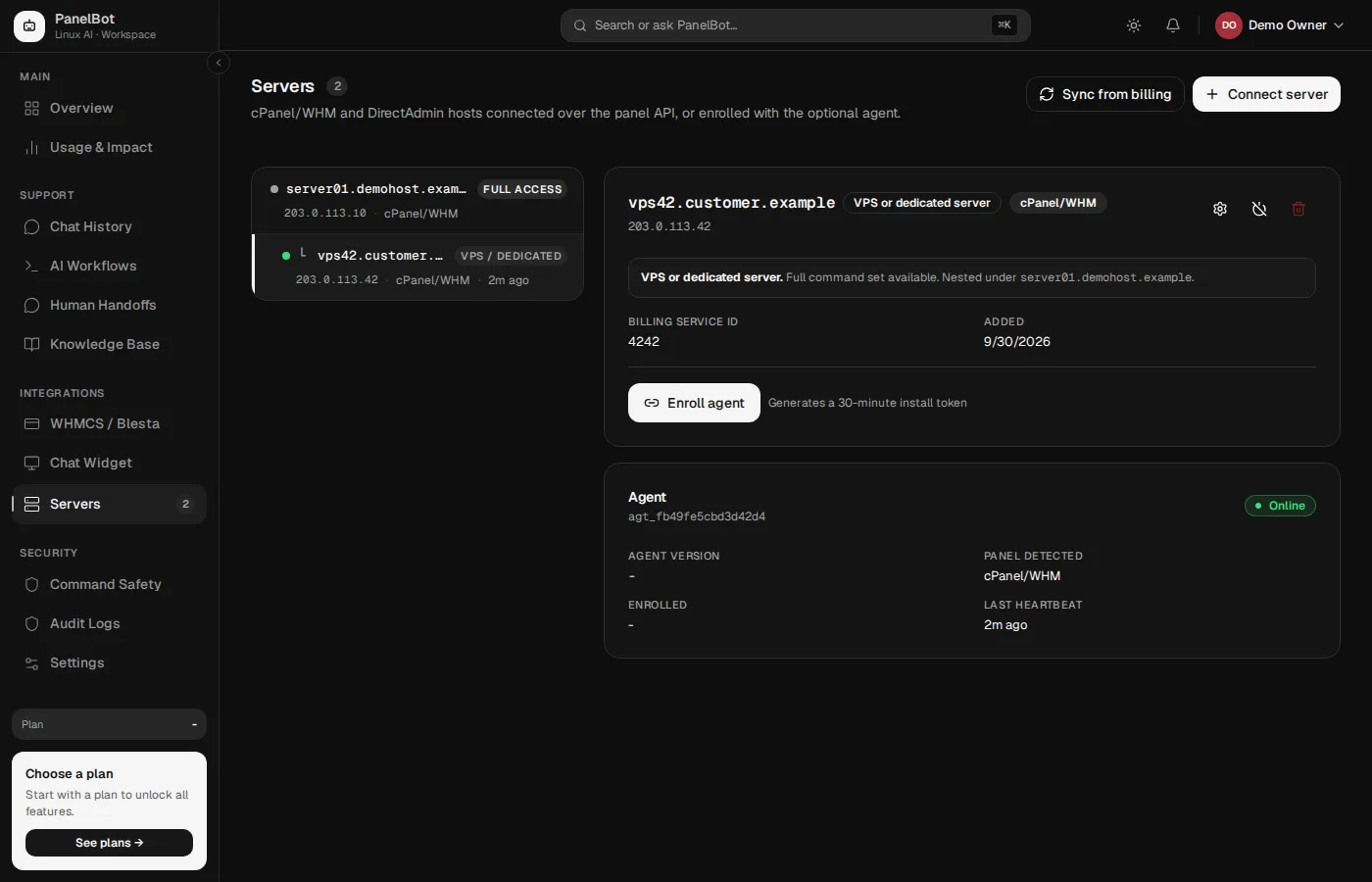
On the Servers list the type shows as a short badge: Full access, Limited access, or VPS / Dedicated. Hover the badge, or open the server, to see the full name.
Server (full access): your shared and reseller hosts
A Server (full access) is a shared or reseller hosting machine. Many customers live on it side by side, so a careless change could affect all of them.
Because many customers share the machine, some risky actions are blocked there to protect every customer on it. Panelbot can still diagnose problems, read state, and make safe per-account changes. It will not run the kind of server-wide operation that could take the whole machine down.
Use it for your cPanel/WHM or DirectAdmin shared and reseller servers.
Reseller server (limited access)
Sometimes your billing system only has a reseller login for a machine. That happens when you rent a reseller account from another host, or when you never added the root entry for that server. Panelbot then shows the server as Reseller server (limited access).
It gets the same protective command set as a full access server. The difference is what the login can reach. A reseller login cannot do root-level work, so Panelbot never offers the server agent on a reseller server. The server’s details on the connect page say so: the agent needs root on the server, so it cannot be installed there, and root-level work on that server can only be done by the server’s own host.
This label applies to cPanel/WHM and DirectAdmin servers connected over the panel API, with the same rules for both. On cPanel/WHM, a reseller login is limited access. On DirectAdmin, a reseller or user login key is limited access, and an admin login key is full access.
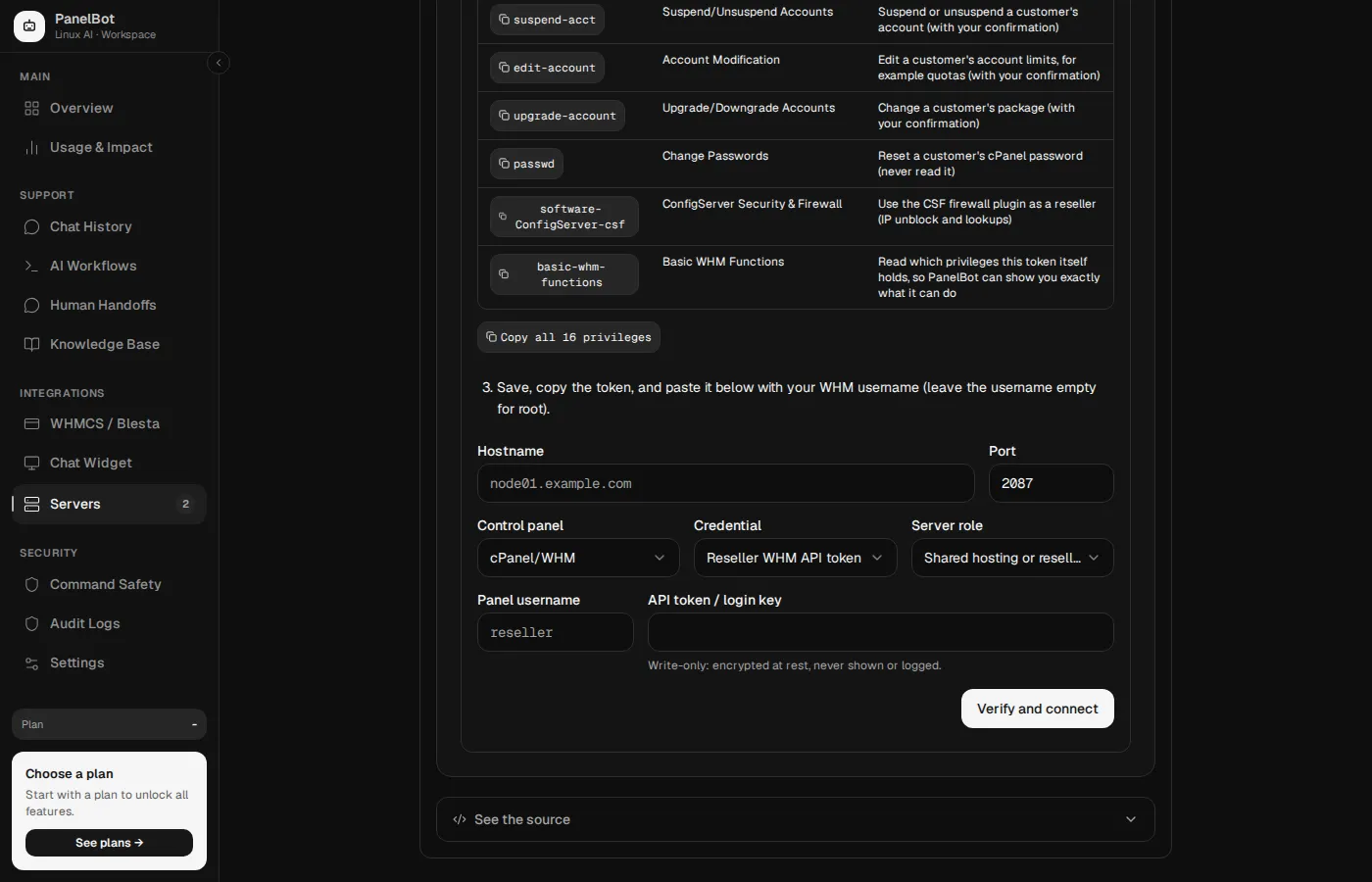
A reseller login that is missing some WHM privileges still connects. Panelbot then gets only what that login has, and the server’s details show Narrower than expected with what is missing.
VPS or dedicated server
A VPS or dedicated server belongs to a single customer or workload. One customer owns the whole machine, so a change cannot spill onto other customers. Panelbot runs the full command set there. That includes heavier operations like service restarts and firewall management.
A VPS or dedicated server can sit under one of your full access servers (for example, a VPS a reseller provisions under your platform), or it can stand on its own.
A VPS or dedicated server needs a root login: a WHM root token on cPanel/WHM, or an admin login key on DirectAdmin. If the server is connected with a reseller login, Panelbot refuses to save it as a VPS or dedicated server and says: “A reseller login has no root access, so this server cannot be added as a VPS or dedicated server. Connect it with a WHM root token or a DirectAdmin admin login key, or add it as a shared hosting or reseller server instead.”
Which one to pick
Tip
Pick Shared hosting or reseller server (shown as Server (full access) once connected with a root login) when the machine holds many customers and you want careful, protective behavior. Pick VPS or dedicated server when one customer owns the machine and you want the full toolkit. If you are unsure, keep it as a shared hosting or reseller server, because that type blocks more.
Note
Your billing system does not say whether a server is shared hosting or a VPS, so servers from the WHMCS or Blesta connector arrive as shared hosting or reseller servers. Set each VPS or dedicated server yourself: open it on the Servers page, choose Edit server, set Server role to VPS or dedicated server, and add its Billing service ID. The connector keeps the role you chose when it sends the same server again.
How nesting appears in the list
When a VPS or dedicated server belongs under one of your full access servers, Panelbot nests it there. On the Servers page it appears indented beneath its parent, with a small tree connector (a └ mark) before its hostname. Open it and the detail view says Nested under and the parent’s hostname.
A VPS or dedicated server with no parent among your servers simply appears on its own in the list. That is expected for a standalone machine.
Why the type matters
The point of the types is blast radius. On a shared machine, one customer’s request should never trigger a change that hurts their neighbors, so Panelbot holds back the dangerous operations there. On a single-customer machine that caution would just get in the way, so Panelbot opens up the full set. The type is how you tell Panelbot which kind of machine it is working on.
Reseller accounts on this server
This part trips people up, so it gets its own section. Reseller accounts only apply to a shared hosting or reseller server.
What a reseller account on a server is
In WHMCS or Blesta, one physical machine often shows up as several “server” entries. Usually there is one entry with the root WHM login, plus one entry per reseller account on that same machine, often with its own branded hostname. Those reseller entries are not separate servers. In Panelbot they are reseller accounts on this server: extra billing entries that all point at the one real machine.
A reseller account here is a billing server entry. It is not a reseller’s customer. Your resellers’ customers are ordinary end users whose accounts already sit on the machine, and Panelbot handles them through normal ownership checks. Reseller accounts on a server only exist so that a chat which arrives under a reseller’s server entry still reaches the one real machine.
Without it, a customer whose service points at a reseller’s server entry would look like they belong to a server Panelbot has never seen, and their chat would not route anywhere.
The connector sets this up for you
When your WHMCS or Blesta billing file sends a root entry and reseller entries for the same machine, Panelbot matches them by IP address or hostname. The root entry becomes the Server (full access) and the reseller entries become its reseller accounts on this server. The order does not matter: a reseller entry sent first is folded in when the root entry arrives. DirectAdmin works the same way: an admin login key entry is the root entry, and reseller or user login key entries on the same machine fold into it.
The billing file reports every server entry in your billing system, with the kind of login it uses (read from the entry’s username) and why it could not connect, if it could not. If you installed the file before this report existed, download it again and upload the new copy: it is still one file for WHMCS and one plugin for Blesta. The Billing server scan then shows each entry’s login kind instead of a guess.
A reseller entry with no root entry on the same machine stays a Reseller server (limited access).
What the billing server ID does
Each reseller account carries a Billing server ID: the ID of that reseller “server” entry in WHMCS or Blesta. It tells Panelbot that any customer chat coming in under this billing entry lives on this server, so route it here. No separate connection is needed. Commands run through the server’s existing connection, with its protective command set.
Add a reseller account by hand
You can add one in three places. The quickest is on the server itself:
- Open the server on your Servers page to reach its detail view.
- Find the Reseller accounts on this server section. If there are none yet, Panelbot says so and explains that you can add one if your billing system lists a reseller account on this same server.
- Choose Add reseller account and fill in the form:
- Label. A friendly name so you recognize it, for example
WHM Reseller #1. - Billing server ID. The numeric ID of that entry in your billing system, for example
7. This is the field Panelbot matches chats against. - Hostname. Optional. The reseller’s branded hostname, for example
reseller.example.com, for your own reference.
- Label. A friendly name so you recognize it, for example
- Save. The reseller account now appears on the server showing its label, billing ID, and hostname.
To remove one, use the trash control next to it. Panelbot asks first, and reminds you that the server itself is not affected: only that billing entry stops pointing at this server.
The other two places are the Edit server dialog, which has a Reseller accounts on this server list you can add rows to, and the Billing server scan, where you set an entry to Reseller account on this server and use Pick its server to choose the server it lives on. The scan is the easiest way to set up many at once, because it already sees every billing entry grouped by machine.
If chats for a reseller are not routing
- A reseller’s customers are not recognized. Confirm there is a reseller account for that reseller’s server entry, and that its Billing server ID matches the entry’s ID in your billing system exactly.
- It is on the wrong server. A reseller account belongs on the server that physically runs the accounts. Remove it from the wrong server and add it to the right one.
- You set it up as a separate server by mistake. In the billing scan, an entry that is really a reseller account on a server you already have should be Reseller account on this server, not Server (full access) or VPS or dedicated server. Re-scan and change it.
What is next
With your servers set up, move on to the customer-facing side. Continue with Configure and enable the chat widget. If a server’s capability list leaves out a job you need, Install the optional server agent explains when that is worth doing.
Related
- Connect a cPanel or DirectAdmin server for connecting the machines themselves.
- Reseller, VPS, and dedicated support for how each type is handled in a chat.
- Permission tiers explained for why a shared machine gets a narrower command set.
- Going-live checklist to confirm every server has the right type before launch.