Configure and enable the chat widget
Every chat widget setting in dashboard order: appearance, greeting, which capabilities the AI handles, and confirmed high-impact actions.
The widget is the chat window your customers open on your site. This step is where you make it yours: give it a name and a look, decide what it is allowed to help with, and turn it on. Sensible defaults are already set, so you can enable it in a single click and refine the details whenever you like.
The Widget page is organized into four tabs, and this guide walks them in order: Appearance, Content, Behavior, and Install. The header stays visible across all four. It shows a Live or Disabled badge, an enable switch that reads Widget live or Widget off, and a Save changes button. Nothing you change takes effect until you save.
Before you start
Note
- Billing connected and at least one server connected, so the assistant can actually resolve account-specific requests.
- A few minutes to set a greeting and pick a color. None of this is permanent.
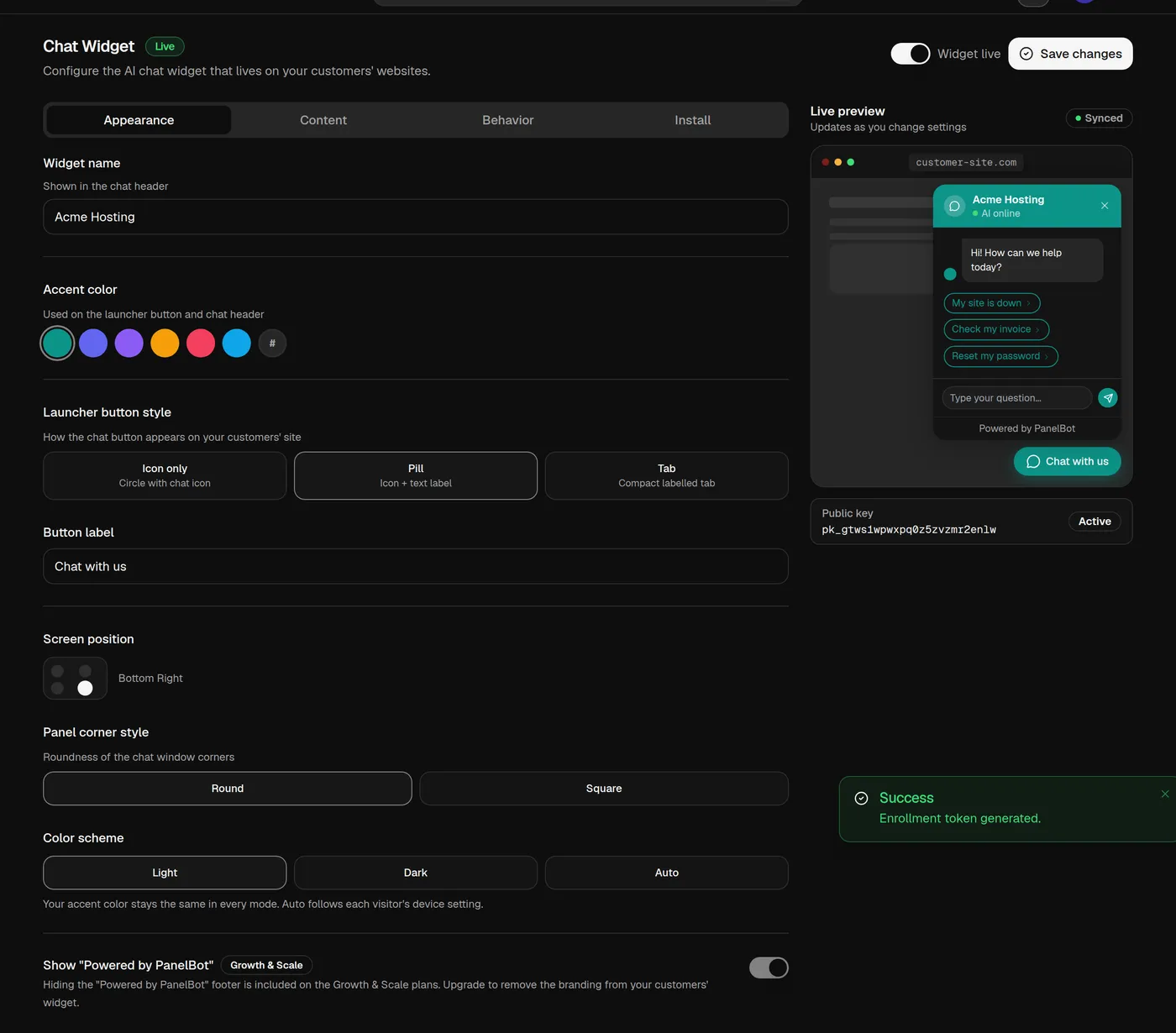
Appearance tab: how the widget looks
Everything here updates the live preview beside it as you type.
- Widget name. Shown in the chat header, so use something customers recognize, such as your brand followed by “Support.”
- Accent color. Used on the launcher button and the chat header. Pick one of the preset swatches or set a custom hex color to match your brand.
- Launcher button style. How the chat button appears on your customers’ site. Choose Icon only (a circle with a chat icon), Pill (icon plus a text label), or Tab (a compact labelled tab).
- Button label. Appears only when the style is not Icon only. This is the short text on the launcher, for example “Chat with us.”
- Screen position. Places the widget in a corner: top left, top right, bottom left, or bottom right. Bottom right is the common default.
- Panel corner style. The roundness of the chat window corners: Round or Square.
- Color scheme. Light, Dark, or Auto. Your accent color stays the same in every mode, and Auto follows each visitor’s own device setting.
At the bottom of this tab is the branding control, Show “Powered by PanelBot”. Depending on your plan, you can switch this off to hide the small footer line so the widget looks fully like your own. If your plan does not include it, the setting shows which plans do.
Content tab: what the widget says
Two fields set the words your customers first see.
- Greeting message. The first message a visitor sees when the widget opens. Keep it warm and specific, for example an offer to help with their hosting.
- Input placeholder. The hint text inside the message box before the customer types, for example “Type your message.”
Behavior tab: what the chat can do
This tab decides how much the assistant handles on its own and who sees it. It is the most important tab to get right.
AI capabilities
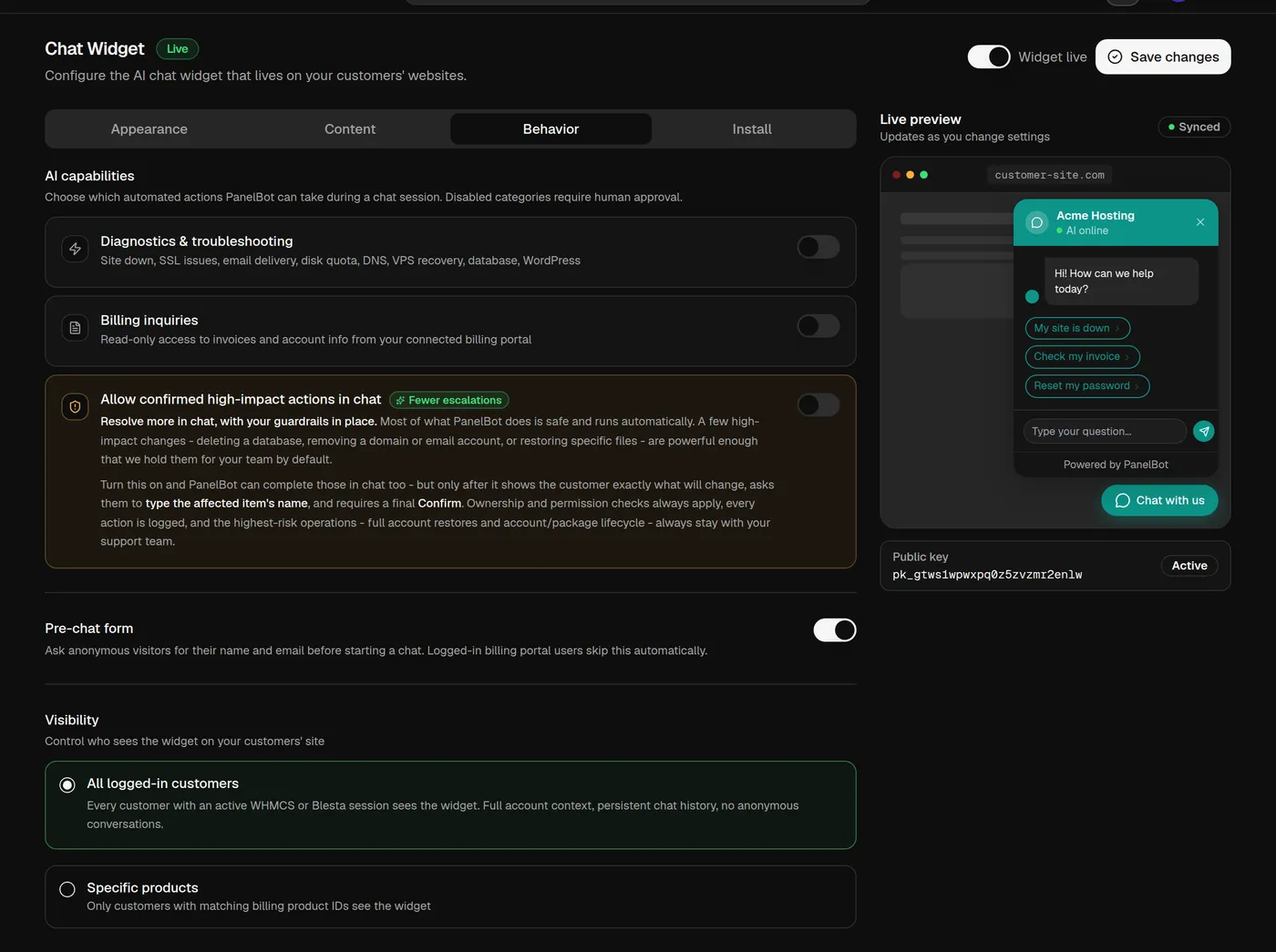
Under AI capabilities, Panelbot notes that you are choosing which automated actions it can take during a chat, and that disabled categories require human approval. There are two toggles:
- Diagnostics & troubleshooting. The assistant investigates common hosting problems (site down, SSL, email delivery, disk quota, DNS, VPS recovery, databases, WordPress) and, where you allow it, resolves the safe ones. This is the core of what Panelbot does, so most teams leave it on.
- Billing inquiries. The assistant reads invoices and account information from your connected billing portal to answer account questions. This is read-only.
Note
Here is the thing to understand about turning a capability off: it does not silently drop those requests. Anything you switch off is routed to your team for human approval instead of running automatically. So a capability that is off means more escalations, and a capability that is on means the assistant can handle it in the chat.
For finer control, the Workflows page in your dashboard lists everything the assistant can handle for customers, each with its own on and off switch. Turn one off and it will not run on your account, so you can roll capabilities out gradually as your confidence grows.
Allow confirmed high-impact actions in chat
This is a toggle on the Behavior tab, in an amber card just under the two capability switches, with a Fewer escalations badge. We recommend turning it on, and here is the honest case for it.
Most of what Panelbot does is safe and runs automatically. A few changes are powerful enough that Panelbot holds them for your team by default: deleting a database, removing a domain or email account, or restoring specific files. With this toggle off, every one of those becomes an escalation your staff has to handle. With it on, Panelbot can complete them right in the chat, so your customers get resolved faster and your team is interrupted less.
It is not a blank cheque. Before Panelbot makes one of these changes, it shows the customer exactly what will change, asks them to type the affected item’s name, and requires a final Confirm. Ownership and permission checks always apply, every action is logged, and the very highest-risk operations, such as full account restores and account or package lifecycle actions, always stay with your support team regardless of this setting. So enabling it means fewer escalations and more chats finished end to end, while the customer still has to name the thing and confirm it, and the truly dangerous operations never leave your team.
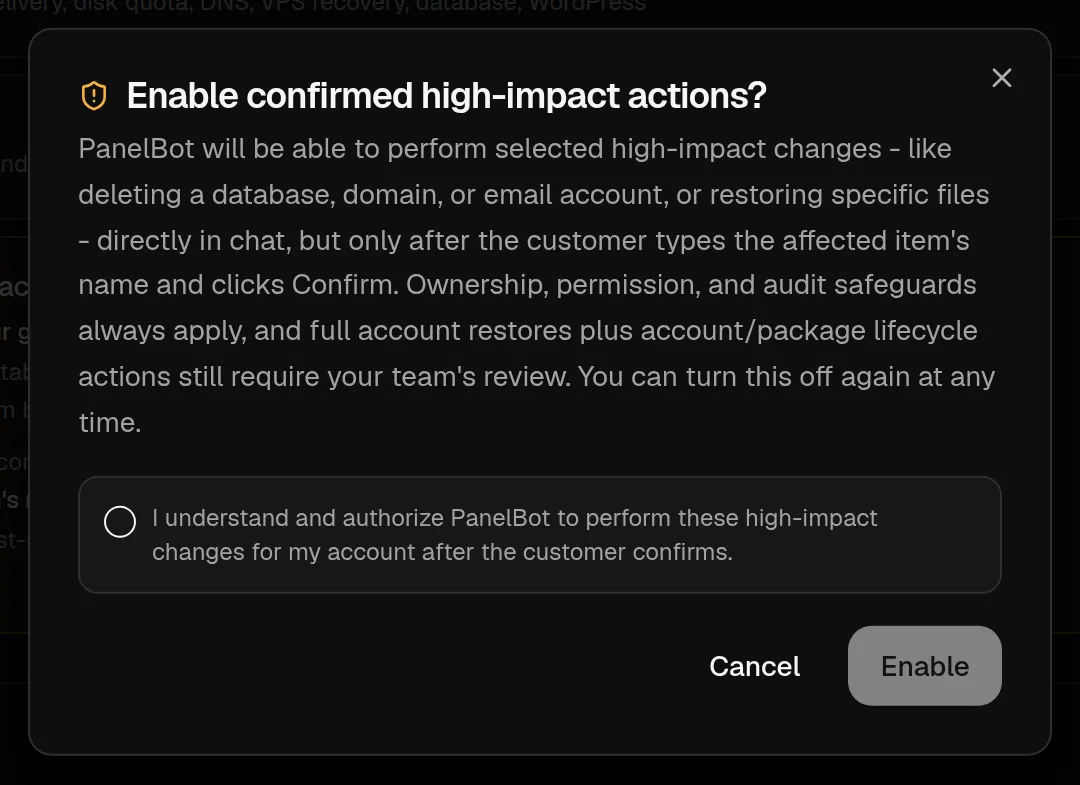
When you switch it on, Panelbot does not just flip it. A consent dialog opens, titled Enable confirmed high-impact actions?, that restates exactly what the assistant will and will not be able to do. You tick a checkbox confirming you understand and authorize these changes for your account after the customer confirms, then choose Enable. Nothing changes until you tick the box and confirm, and you can turn it off again at any time. If you would rather not decide yet, leave it off; your customers still get full diagnostics and safe fixes, and anything high-impact escalates. Learn more in Permission tiers explained.
Pre-chat form
The Pre-chat form toggle asks anonymous visitors for their name and email before a chat begins. Logged-in customers from your billing portal skip it automatically, because Panelbot already knows who they are.
Visibility
Visibility controls who sees the widget on your customers’ site. Choose All logged-in customers so every customer with an active WHMCS or Blesta session gets an account-aware chat with full context and persistent history. Or choose Specific products, which reveals a Product IDs field where you enter the billing product IDs that should see the widget, so only those customers get it. All logged-in customers is the usual choice.
Install tab
The Install tab holds the ready-made integrations for putting the widget on your portal. That is the next page, so leave it for now.
Enable the widget
Flip the enable switch in the header so it reads Widget live, then choose Save changes. The badge changes to Live. Enabling it here makes it available; the next step puts it on your site so customers can reach it.
How your widget stays secure
Your widget authenticates each customer using a secure token issued by your own portal, so only your signed-in customers get account-aware chat. The ready-made integrations you install in the next step issue that token for you, and your signing secret never leaves your portal. You do not manage keys by hand; installing the integration is all it takes.
What is next
Your widget is configured and enabled. Now add it to your customer-facing portal so people can open it. Continue with Add the chat widget to WHMCS or Blesta.
Related
- Add the chat widget to WHMCS or Blesta for installing the hook or plugin.
- Permission tiers explained for how the impact grades behind these toggles work.
- Your own knowledge base for teaching the assistant your policies.
- Languages the assistant supports for how multilingual chats are handled.