Going-live checklist
Run the final Panelbot pre-launch checks, classify your servers correctly, send one safe test chat, and know what to watch on your dashboard after launch.
You have set everything up. Before you point real customers at Panelbot, take ten minutes to confirm each piece is in place and to run one safe test chat. Launching with confidence is worth the short pause, and this page gives you a clear list to check against.
Before you start
Note
Have your dashboard open and be ready to sign in to your billing portal as a customer for the test at the end.
Your pre-launch checklist
Work down this list. Each item links to the step that covers it if you need to revisit anything.
- Billing is connected and verified. Your WHMCS or Blesta connection shows as Connected, and the assistant can identify customers and see their services. See Connect your billing portal.
- Your servers have the right type. Each shared hosting or reseller server and each VPS or dedicated server is set correctly, and reseller entries for a machine you already have are reseller accounts on that server rather than separate servers. This is what keeps commands routing to the right machine. See Server types explained.
- At least one server is connected. On your Servers page, the server shows as Online with its panel confirmed and its capability list filled in. See Connect your first server. The server agent is optional.
- The widget is enabled. The Widget page header reads Widget live, styled the way you want. See Configure and enable the chat widget.
- The widget is embedded on your portal. Signed-in customers see the launcher and are recognized when they open it. See Embed the widget on your portal.
- Your team is invited with the right roles. The people who will handle escalations are in the account, scoped correctly. See Invite your team and set roles.
- Your escalation routing is set. When the assistant hands off, tickets open in the support department you chose. Set the Department ID and Default priority in the Escalation routing card on your Billing page. See Connect your billing portal.
- You have decided on high-impact actions. Confirm which capabilities are on, and decide whether to enable confirmed high-impact actions in chat or leave them escalating to your team. See Permission tiers explained.
- You understand your plan and quota. Know what your plan includes so nothing surprises you as chats ramp up. See Usage, quotas, and credits.
Run a safe first test chat
Tip
The best final check is to be your own first customer.
- Sign in to your portal the way a customer would, ideally as a real or test customer account rather than an admin.
- Open the widget from your client area.
- Send a simple, real question, for example asking about a service that account owns.
- Watch how the assistant responds. Confirm it recognizes the account and stays within what you enabled.
- Try a request that should hand off to a human, and confirm the escalation reaches your team where you expect it.
This exercises the whole path: authentication, account recognition, diagnostics, and escalation. If each part behaves, you are ready. If something is off, the Troubleshooting your setup page walks through the common snags.
Sending this first handled chat also completes the last onboarding step automatically, so your setup checklist finishes itself.
What to watch after you launch
Launching is the start, not the finish. In the first days, keep an eye on two places in your dashboard:
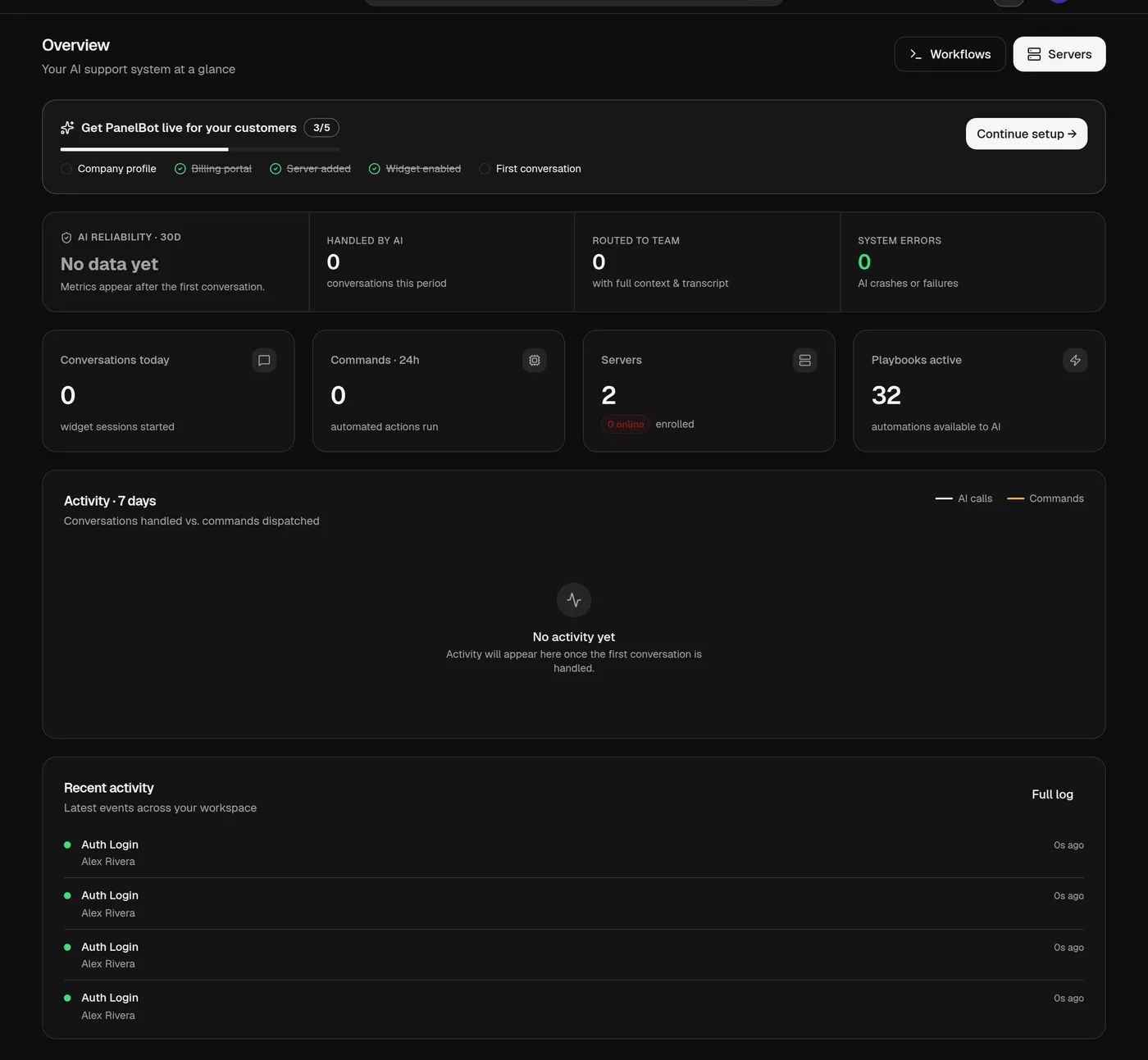
- Your overview. This is your at-a-glance view of activity: how many chats are coming in, what is being handled, and what is escalating to your team. It tells you quickly whether things are flowing as expected.
- Your usage page. This shows how your chats and other usage are tracking against your plan. Checking it early means you are never caught off guard as volume grows. See Usage, quotas, and credits.
It is also worth reviewing your first real escalations to see how the handoff felt from both the customer’s side and your team’s side. That is the fastest way to build trust in the system and to spot anything you want to adjust.
A calm, honest expectation for launch
Panelbot resolves common, well-understood hosting issues on its own, guides customers when it cannot act directly, and escalates to your team when it is not confident, when a change is risky, or when a request is outside its scope. It is not a replacement for your staff, and it does not pretend to be. Launching with that understanding sets you and your customers up for a good first experience. For the full picture of the boundaries, see Limits and known boundaries.
You are live
Once the checklist is green and your test chat behaves, announce the widget to your customers however you normally would. From here, your day-to-day home is your dashboard overview, and your team handles escalations from the support inbox. Welcome aboard.
Related
- Support inbox and live chat handoff for how your team works the queue from day one.
- Usage, quotas, and credits for watching conversations against your plan.
- Your own knowledge base for teaching the assistant your policies before volume ramps.
- Troubleshooting your setup for anything the test chat turns up.