Onboarding checklist overview
Understand the five-step Panelbot setup checklist, what each step does, where every setting lives afterward, and how your first chat finishes onboarding.
When you first sign in, Panelbot opens a guided setup checklist. It walks you through everything needed to get a working AI support assistant on your site, in the order that makes each step possible. This page explains the whole path so you know what is coming before you start.
Before you start
Note
- You have created your account and signed in.
- You have about twenty minutes, or you are happy to do the steps across a few sittings. Nothing is lost when you close the checklist.
How the checklist works
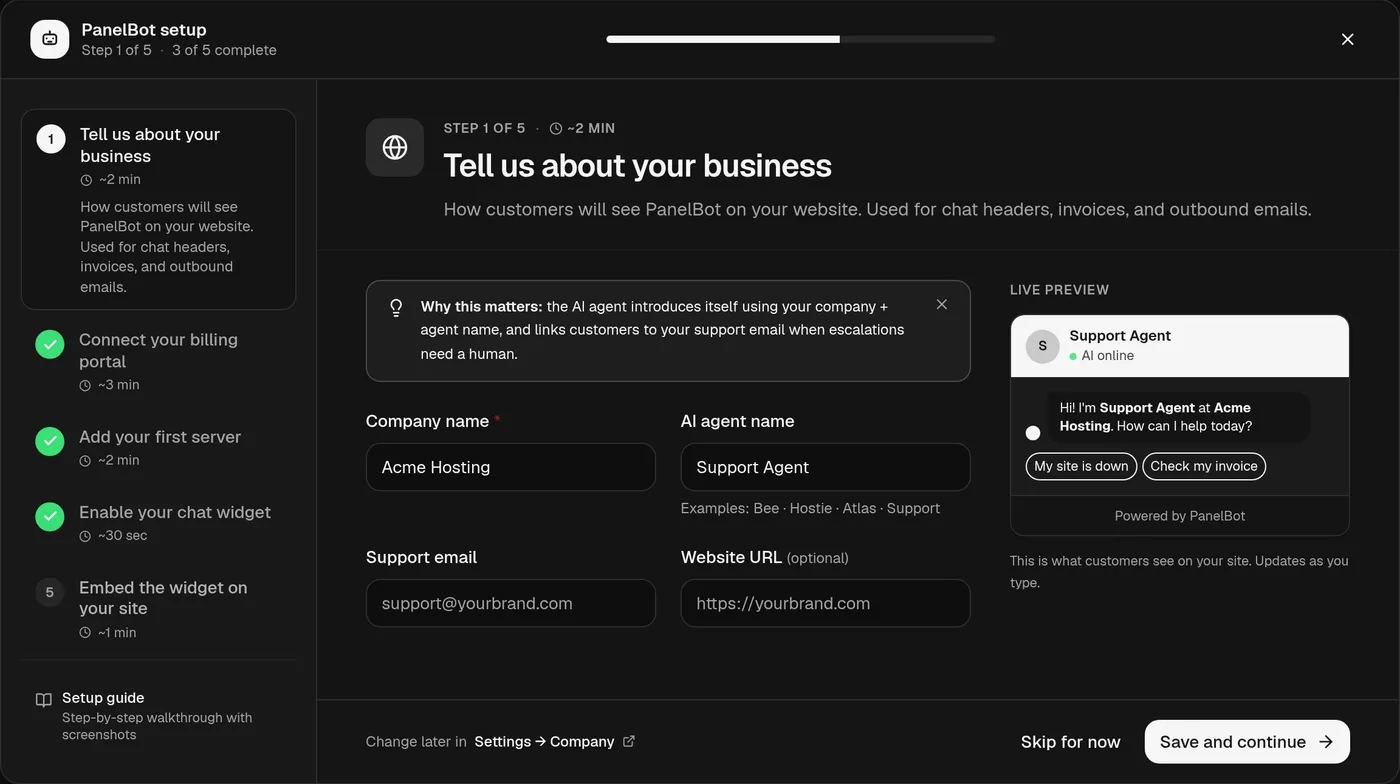
The checklist opens right after you sign up. Until you finish it, a Continue setup banner on your dashboard brings it back. The header shows Step X of 5 and how many are complete, with a progress bar underneath. You can move between steps freely, skip one and come back, or close the checklist and reopen it later. Nothing is locked in until you save each step, and every setting stays editable long after onboarding ends.
The five steps
Each step has a title you will see on screen. Here is what each one does.
1. Tell us about your business. You set four things: Company name, an AI agent name (what customers see the assistant called, for example Bee or Atlas), a Support email, and an optional Website URL. Customers see this branding in the chat header. The support email is your customer-facing support address, kept with your company profile; it is required to finish this step. Where escalations actually get routed is set separately once billing is connected.
2. Connect your billing portal. You link Panelbot to your billing system, either WHMCS or Blesta, using an API credential. This is what lets the assistant recognize a signed-in customer, look up the services they own, and open a ticket when it hands off to your team. Full walkthrough: Connect your billing portal.
3. Connect your first server. You connect at least one of the servers your customers’ accounts live on. Panelbot talks to it over the cPanel/WHM or DirectAdmin API with a scoped credential, so there is nothing to install and no root needed; connecting from your billing portal does it in a few clicks. Servers are matched to their entry in your billing system, so this step follows billing. See Connect your first server and Server types explained. The server agent is optional and only for jobs a panel credential cannot reach.
4. Enable your chat widget. You turn the widget on and set the basics: its name, greeting, accent color, and screen position. Sensible defaults are already in place, so this can be a single click. Everything else stays adjustable later. Full details: Configure and enable the chat widget.
5. Embed the widget on your site. You add Panelbot to your billing portal so signed-in customers can start a chat. This is the step that puts the assistant in front of real people. Walkthrough: Embed the widget on your portal.
The last step finishes itself
You do not tick off the final step by hand. Once your first real customer chat is handled by the assistant, that step completes on its own. The wizard is waiting for that first chat to land. In other words, onboarding ends the moment Panelbot is genuinely working on your site. You can embed the widget now and let this step close by itself, or send yourself a test chat to trigger it.
Where everything lives afterward
Nothing you set during onboarding is trapped in the checklist. Each step maps to a permanent home in your dashboard:
- Business details live under Settings, in the Company section.
- The billing connection lives on the Billing page.
- Servers, their credentials, and any optional agents live on the Servers page.
- Widget appearance, behavior, and embed instructions live on the Widget page.
Come back to any of these whenever you want to change something. Changes take effect right away.
Do the steps have to be in order?
Mostly, yes, because each step builds on the one before it. Billing has to be connected before servers can be matched to it, and a connected server has to exist before the assistant can act on real accounts. You can still skip ahead to read or preview a step, but you get the most value by working top to bottom.
If you close the checklist
Closing it does not lose your progress. Open the menu in the wizard header and choose Close for now to continue later from the Continue setup banner on your dashboard, or Don’t show again to hide that banner in this browser. Either way, half-finished steps stay saved: while setup is unfinished, a small Setup checklist link on your dashboard reopens the checklist even after Don’t show again.
What is next
If you are ready to begin, start with Connect your billing portal. If you would first like the bigger picture of how Panelbot fits between you, your customers, and your servers, read How Panelbot works end to end. When you have worked through every step, the Going-live checklist confirms you are ready to launch.
Related
- Start free on WHMCS or Blesta for the same path condensed into one page, on the card-less plan.
- Create your account and sign in if you have not signed up yet.
- Connect a cPanel or DirectAdmin server for step three in detail.
- Troubleshooting your setup if a step will not complete.