Connect your billing portal (WHMCS / Blesta)
Create an API credential in WHMCS or Blesta, link it to Panelbot field by field, verify the connection, and set where escalated tickets are routed.
Connect your billing portal
Connecting your billing portal is what turns Panelbot from a generic chatbot into an assistant that knows your customers. Once linked, it can recognize a signed-in customer, look up the exact services they own, and open a ticket in your system when it needs a human. This step is the foundation for everything else, so it comes early.
This page holds your hand on both sides: first inside WHMCS or Blesta to create the credential, then field by field in Panelbot.
Why Panelbot needs this
Ownership is checked in code, never guessed by the AI. When a customer says “my site is down,” Panelbot confirms against your billing records that this person actually owns that domain before it looks at anything. Your billing portal is the source of truth for who owns what. Without it, the assistant can still chat, but it cannot identify anyone or safely act on a specific account.
Before you start
Note
- A supported billing portal. Panelbot connects to WHMCS and to Blesta.
- Admin access to that portal, so you can create an API credential.
- The portal’s web address, reachable over HTTPS from the internet.
- The name of your billing admin folder if you renamed it for security. You will need this in one of the fields below.
Step 1: Create an API credential in your portal
Panelbot connects with a dedicated API credential, not a staff login. Create one scoped to only what the assistant needs: reading clients, products, and invoices, and creating tickets. Granting only that keeps the connection tightly limited.
In WHMCS. Open Setup, then Staff Management, then Manage API Credentials, then the API Roles tab. Create a role named PanelBot and enable exactly these 11 actions, nothing else: GetClients, GetClientsDetails, GetClientsProducts, GetClientsDomains, GetServers, GetInvoices, ValidateLogin, GetTickets, OpenTicket, UpdateTicket, AddTicketNote. Save the role, then generate a new API Credential and assign it that role. WHMCS produces two values: an Identifier and a Secret. Copy both. The Identifier is not your admin username, so do not confuse the two.
In Blesta. Install the Panelbot plugin from your plugin manager first (see Embed the widget on your portal for where to get it), then open your company settings, find the API access area, and add an API user with access to clients, services, invoices, and support. Blesta gives you a Username and a Key. Copy both.
Warning
Keep these values handy for the next step, and treat the secret or key like a password.
If your WHMCS restricts API access by IP. Many WHMCS installs only accept API calls from listed IP addresses. Panelbot shows its IP address right in the billing connection form, with a copy button. In WHMCS open Setup, then General Settings, then the Security tab, and add that IP under API IP Access Restriction, then save. Without it, WHMCS refuses every call from Panelbot and the check reports that your WHMCS is blocking Panelbot’s IP.
Step 2: Open the billing connection in Panelbot
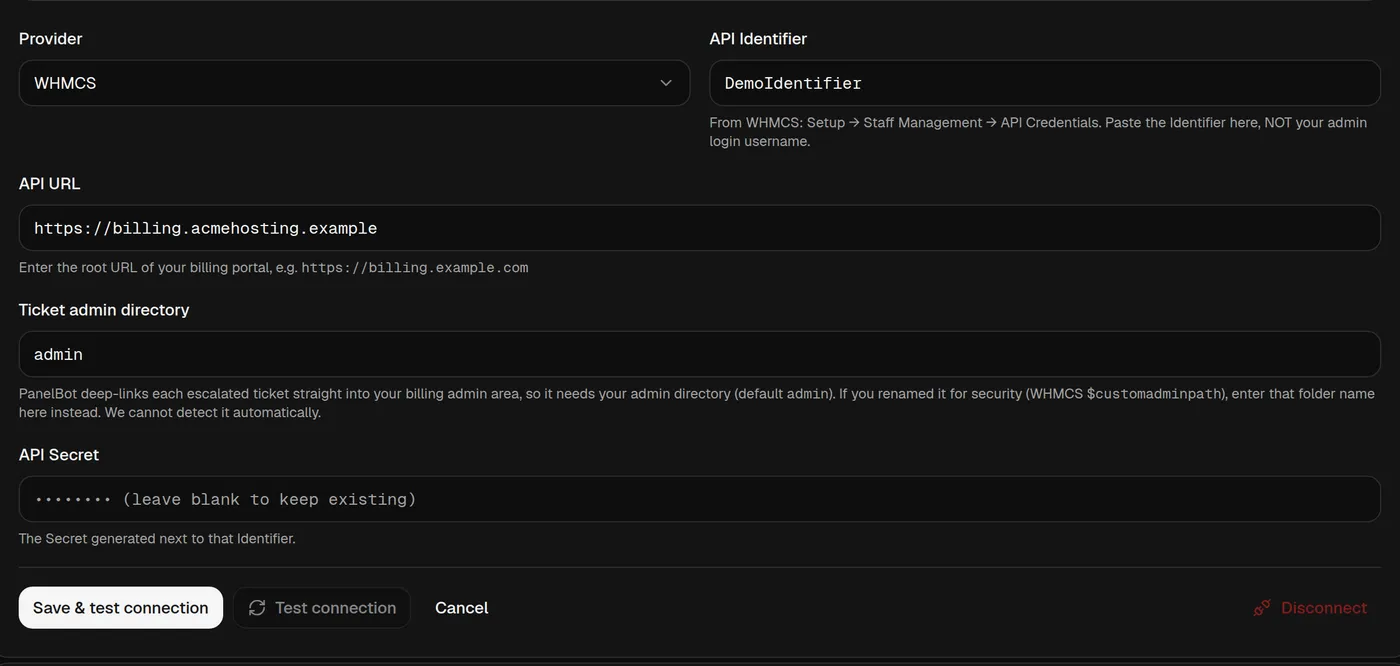
In your dashboard, go to the Billing page (or the connect-billing step in the setup checklist). Use the Provider menu to choose your portal: pick WHMCS or BLESTA. The credential fields relabel themselves to match your choice.
Step 3: Fill in the connection details
The two credential fields are named for your provider. Fill in every field:
- API URL. The root web address of your portal, for example
https://billing.example.com. Enter the root address only. - API Identifier (WHMCS) or Username (Blesta). Paste the Identifier or username from Step 1. For WHMCS this is the Identifier, not your admin login.
- API Secret (WHMCS) or API key (Blesta). Paste the matching secret or key. Panelbot stores it encrypted at rest and never shows it back to you in full.
- Ticket admin directory. The folder name of your billing admin area, which defaults to
admin. Panelbot uses it to deep-link each escalated ticket straight into your admin area, so your team lands on the ticket in one click. If you renamed this folder for security (the custom admin path in WHMCS, or your Blesta admin URI), enter that folder name here instead. Panelbot cannot detect it for you.
Step 4: Save and let Panelbot verify
Choose Save & test connection. Panelbot runs a quick check against your portal to confirm the address is reachable and the credential has the access it needs. If something is off, you get a plain message about what to fix, for example a permission that was not granted or an address that could not be reached. Correct it and save again. You can re-run the check any time with the Test connection button.
You know this worked when the Billing page shows the connection status as Connected. If it shows Auth error instead, the credential is being rejected, so re-check the identifier and secret. Pending means the check has not completed yet.
Step 5: Scan and match your servers
With billing connected, a Scan servers button appears on the Billing page. This reads your portal and lists the server entries it found so Panelbot can map the services in your portal to the physical machines they live on. New cPanel and DirectAdmin servers are added by the billing file you download on the connect page, not by the scan; the scan updates servers already in Panelbot and links reseller accounts. The scan has a little more to it, since it separates a real host from its reseller identities, so it has its own walkthrough. Continue in Connect your first server.
Step 6: Set your escalation routing
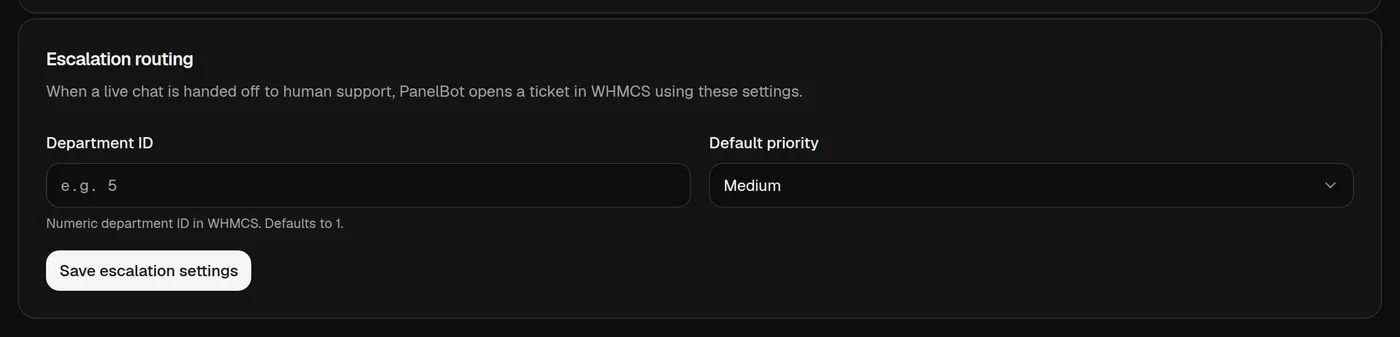
Once billing is connected, an Escalation routing card appears on the Billing page (you see it if your role can manage billing). This decides where tickets land when the assistant hands off to a human:
- Department ID. The numeric ID of the support department in your portal that new tickets should open under. It defaults to
1. Enter the department you want escalations to reach, for example5. - Default priority. The priority those tickets open with. Choose Low, Medium, High, or Critical. The default is Medium.
Choose Save escalation settings. Panelbot then opens each escalated ticket in that department at that priority, so it drops straight into your existing workflow. Set this while billing is fresh in mind; you can change it later from the same card.
How your credentials are protected
Your API secret is encrypted at rest and decrypted only at the moment it is used to talk to your portal. It is never written to logs, never returned in full through the interface, and never shared with the AI. The assistant works from the data your portal returns, not from your credentials.
If the connection fails
- Your WHMCS is blocking Panelbot’s IP. The message names the IP address. Add it under Setup, General Settings, Security, API IP Access Restriction in WHMCS, save, and try again.
- Address unreachable. Confirm the API URL is correct, uses HTTPS, and is reachable from the public internet. A firewall that blocks outside access will stop the check.
- Auth error status. The identifier and secret are not matching. In WHMCS, confirm you pasted the Identifier and not your admin username, that the credential is active, and that its role has all 11 actions enabled. In Blesta, re-check the username and key.
- Escalated tickets land in the wrong place. Revisit the Department ID in the Escalation routing card.
- Wrong provider selected. Make sure the Provider you chose matches the portal you are connecting.
More setup fixes live in Troubleshooting your setup.
What is next
Once billing is connected, add and classify your servers so Panelbot knows which machine each customer lives on. Continue with Connect a cPanel or DirectAdmin server.
Related
- Connect a cPanel or DirectAdmin server for the server scan and the agentless connection.
- Add the chat widget to WHMCS or Blesta for the client-area integration that uses the same portal.
- What your plan includes for escalations for where escalated tickets land.
- Supported platforms and integrations for what Panelbot works with today.